
This article will help you get your S1 sensor back online if you receive an offline notification.
Unplugging your S1 sensor's power cable, waiting 10 seconds and then reconnecting it can often reconnect your sensor automatically to your Wi-Fi network. If it doesn't, please follow the steps below.
If your Sensor is networked using Wi-Fi
Step 1 — Check that your Sensor is powered
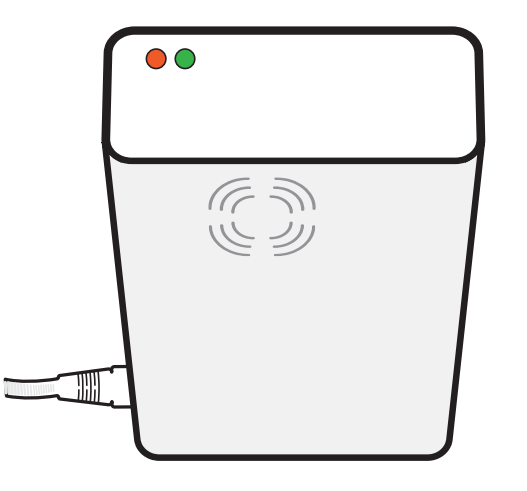
This can be checked by looking for LED status lights on the side of the device. Ensure the power cable is securely fitted into the Sensor and at the opposite end.
If using a supplied mains Ethernet adapter, please ensure this is also plugged in securely and switched on.
Step 2 — Wait for automatic reconnection
If you have just returned power to the device, wait up to a minute to see if it automatically re-connects to your network. Once connected, both the red and green LEDs will be continuously lit.
Step 3 — Put the sensor in hotspot mode
If your Sensor doesn't automatically re-connect, press the reset switch on the back of the unit for 5 seconds, using a pen, until the LEDs change their state and begin flashing in unison.

Step 4 — Connect to the sensor hotspot
Use a computer, smartphone or tablet to connect to the Wi-Fi access point named "Hoxton Direct hotspot".
Step 5 — Select your network
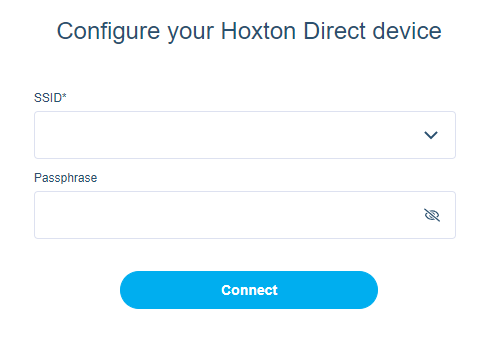
After a few moments, the setup pop-up should appear. Select the network you wish the Sensor to connect to by clicking the box labelled "SSID".
Step 6 — Enter the Wi-Fi password
Enter the Wi-Fi password for this network into the "Passphrase" box.
Step 7 — Reconnect
After clicking the Connect button, your computer or other device will be disconnected from the Hoxton Direct hotspot and reconnected to the Wi-Fi network your computer was on before.
Step 8 — Confirm connection
Wait up to one minute, during which the sensor will indicate a successful Wi-Fi connection with both a solid green and red LED.
If your Sensor is connected by Ethernet
Check the Ethernet cable is securely connected at both the sensor and the network switch or router. Try a different Ethernet port or cable if available. If using Power over Ethernet (PoE), ensure the PoE switch is powered and functioning.
If you continue to experience issues, please contact our support team at support@hoxtonanalytics.com.